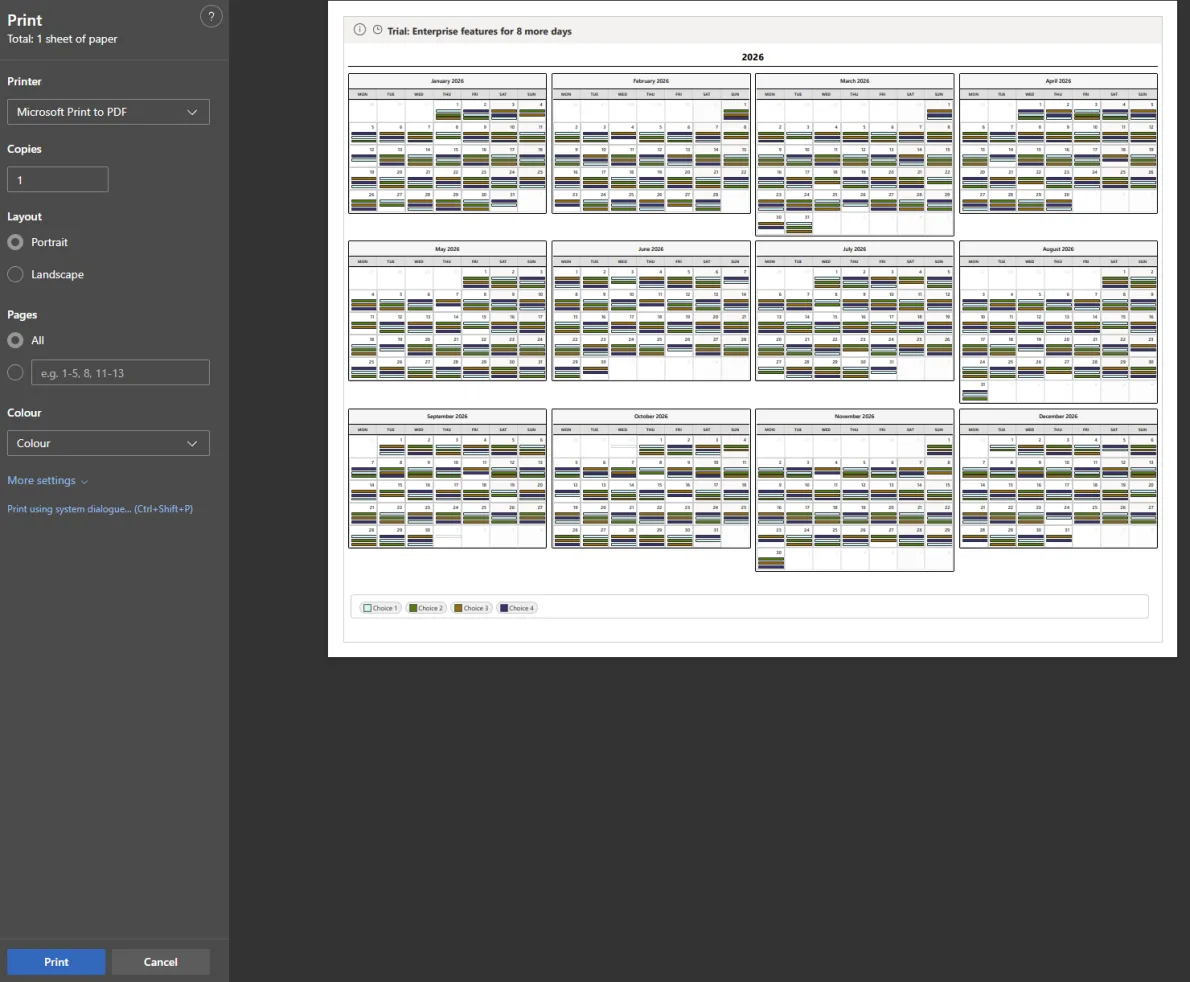
Calendar Planner for SharePoint
JFDI WEB PARTS
A modern, multi-view calendar and planning tool for Microsoft 365
Bring clarity to your team’s planning with a clean, visual year, month, week, grid, and timeline calendar for SharePoint Online. Calendar Planner helps organisations coordinate, schedule, and communicate events and activities across the year.
All powered by SharePoint lists

Why Calendar Planner?
A better way to plan and visualise your year
Calendar Planner replaces outdated SharePoint calendars and clunky overlays with a clean, modern interface designed for teams. Switch between multiple layouts, colour-code categories, manage events quickly, and get instant visibility across your organisation.
It’s fast, intuitive, lightweight and built entirely for SharePoint Online.
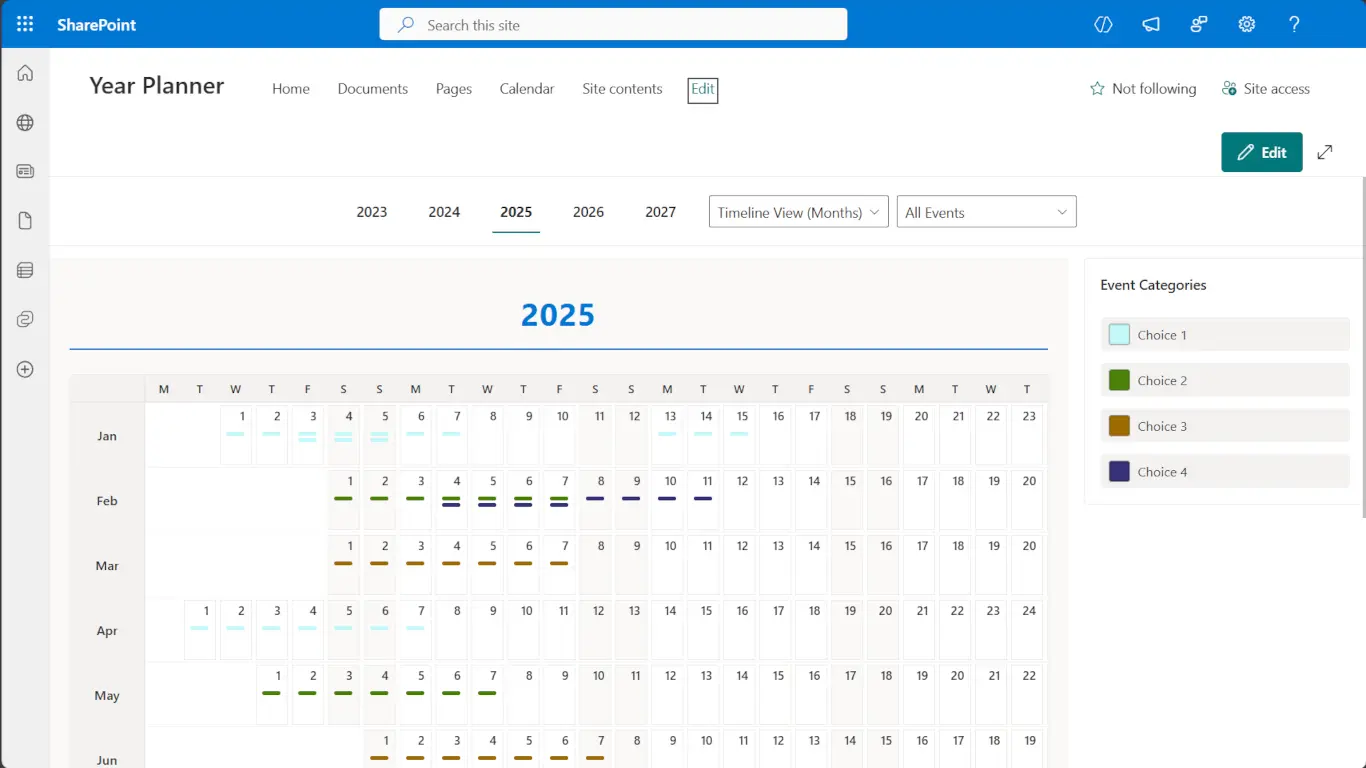
This screenshot highlights Calendar Planner’s Timeline View (months), giving your team a complete, at-a-glance overview of events across all 12 months. Colour-coded categories make it easy to spot patterns, busy periods, and team-level activities, while the simple SharePoint-integrated interface keeps everything organised, familiar, and effortless to navigate. Perfect for annual planning, high-level reporting, and keeping everyone aligned throughout the year.
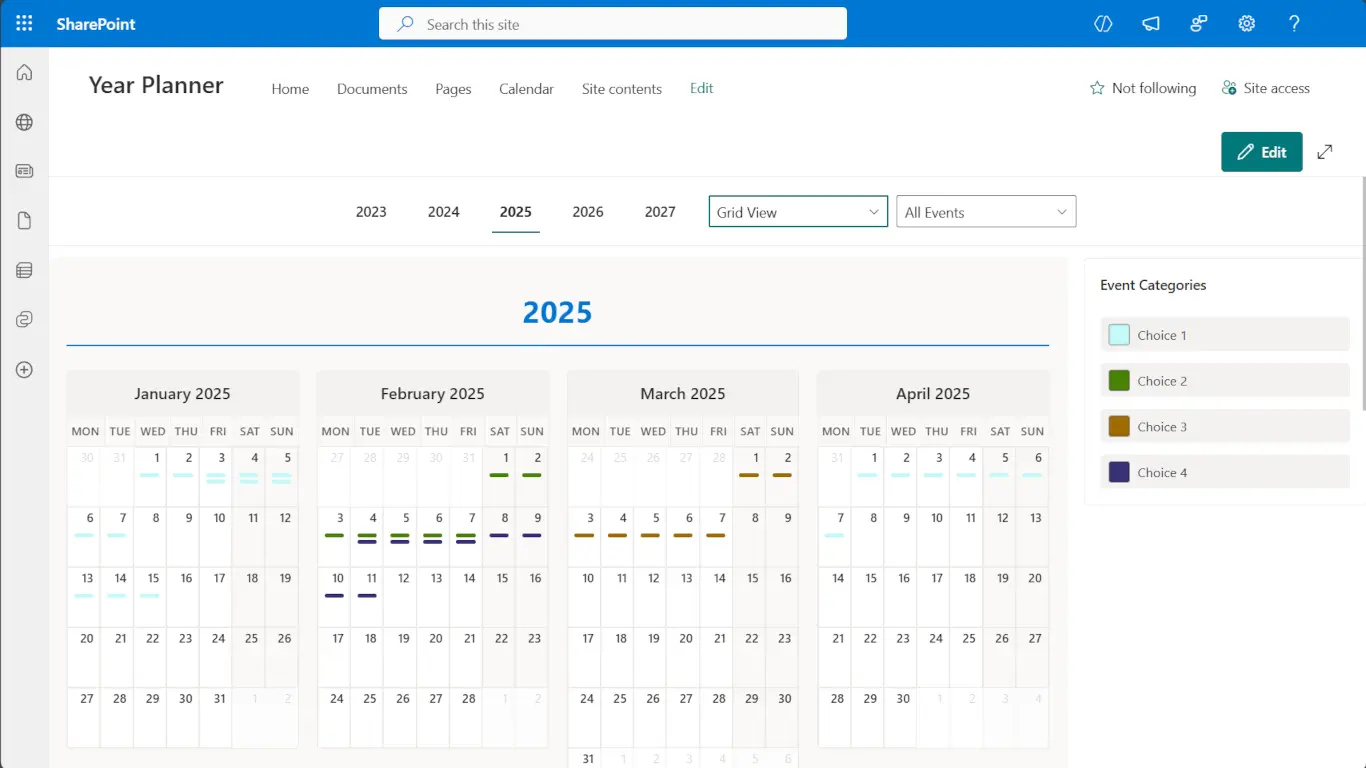
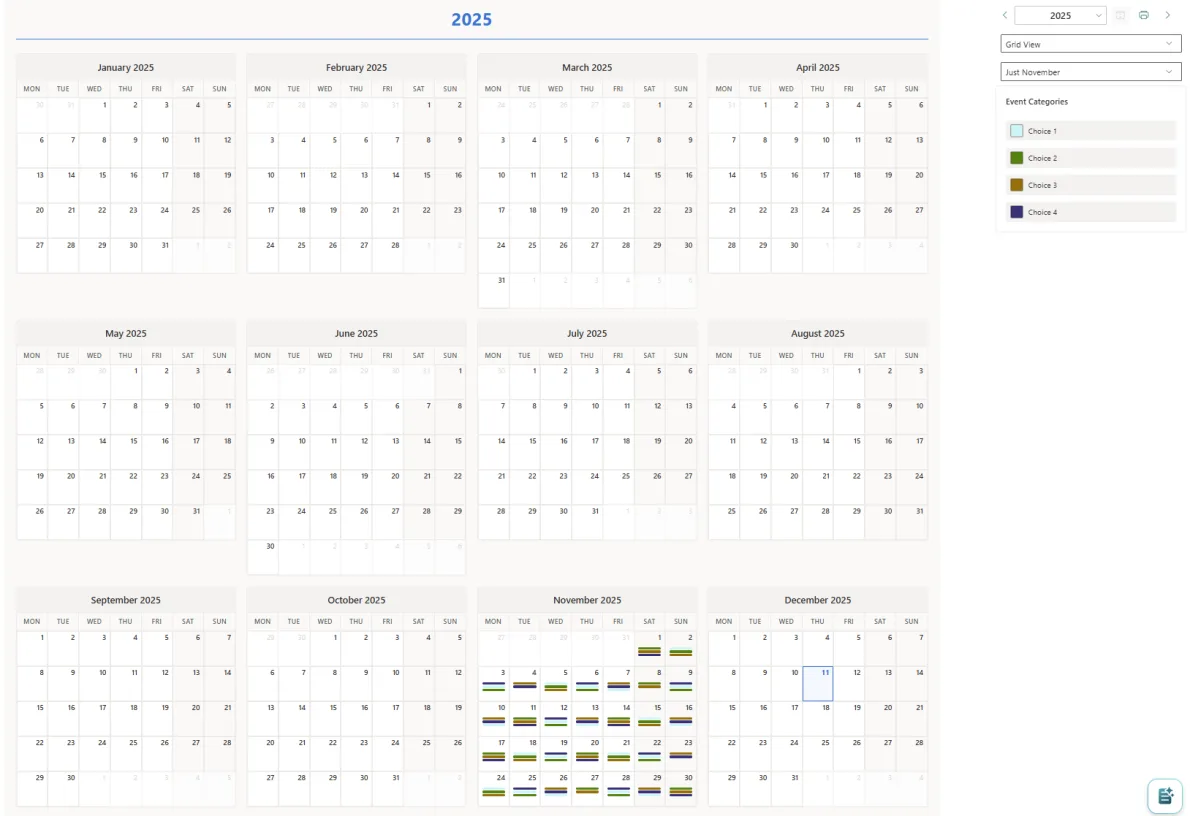
This screenshot showcases the Grid View, which presents your calendar in a compact, multi-month layout. Each month is displayed in a tile-style grid, making it easy to compare schedules, spot patterns, and understand upcoming commitments across the quarter. Ideal for team meetings, leadership reporting, and long-range planning.
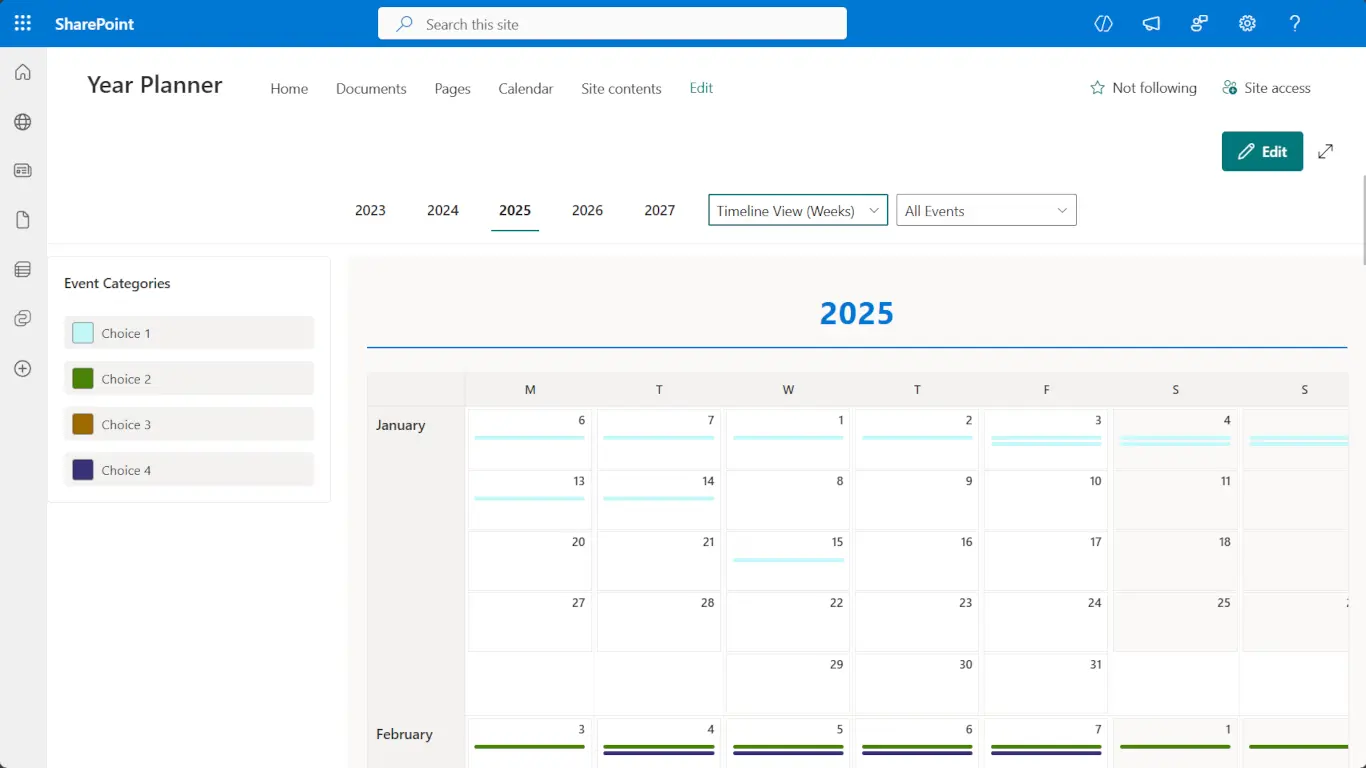
Understand Workloads and Overlaps at a Glance. This screenshot highlights the Weekly Timeline View, ideal for spotting overlaps, upcoming deadlines, or busy periods across your team. Events extend visually across multiple days, and colour-coded categories provide immediate context. This view is perfect for operational planning, resource management, and quickly understanding how work is distributed throughout the month.
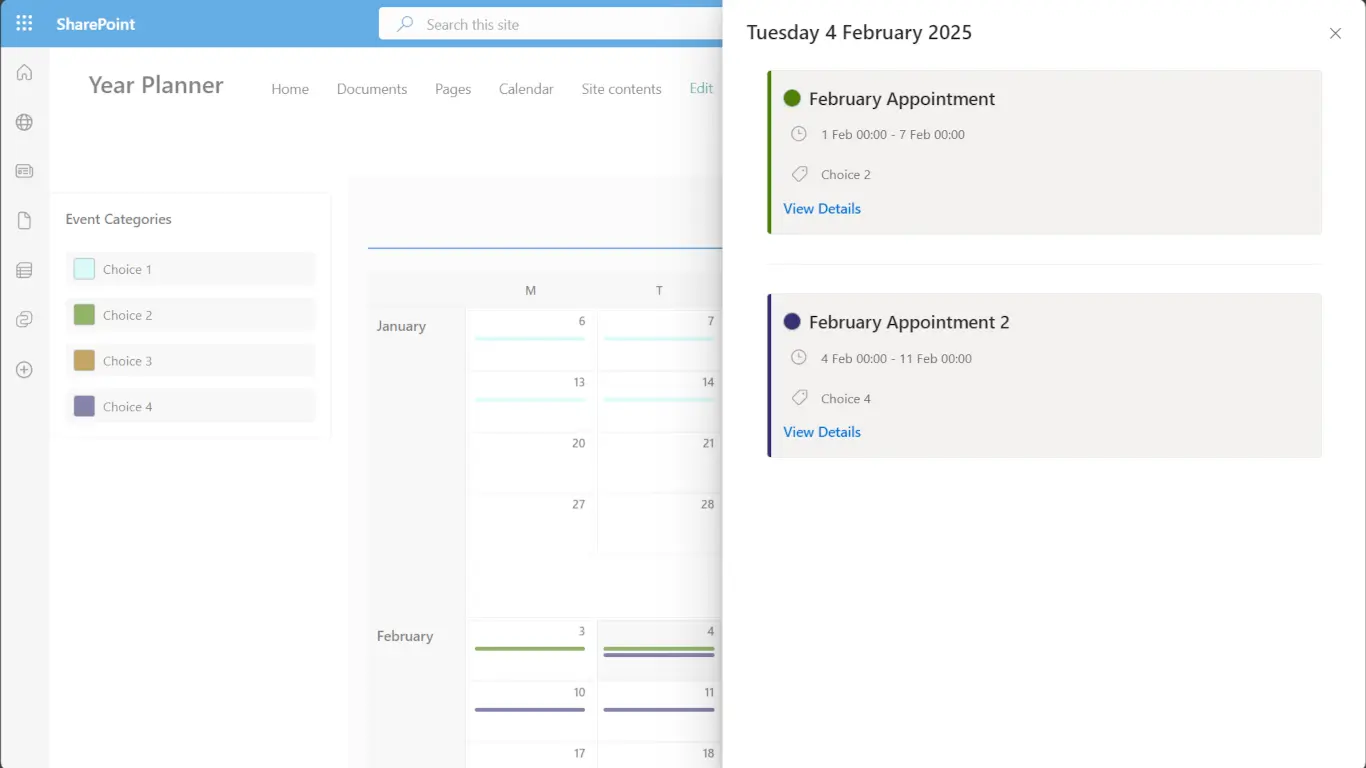
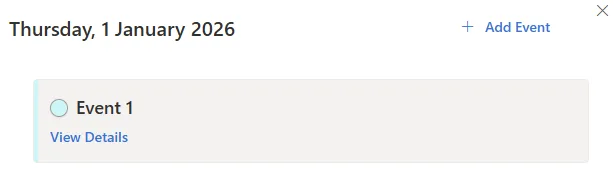
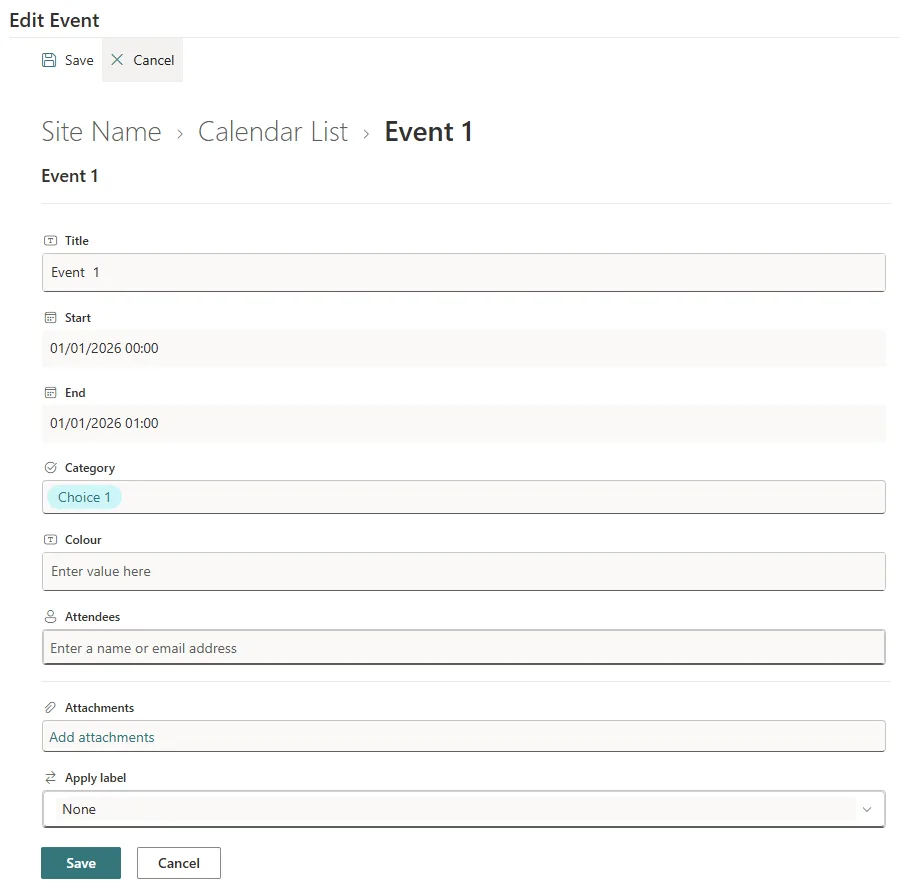
A Clear, Modern Way to View and Manage Appointments. This screenshot shows Calendar Planner’s Event Details panel, which appears when selecting a day or appointment. Users can instantly view event information, including dates, duration, category, and additional notes. Colour-coded category tags and a clean layout make it easy to understand what’s happening at a glance, while the “View Details” link allows deeper editing or review. Perfect for managing multi-day events and staying organised.
Built for Teams & Organisations
Calendar Planner supports:
- Internal Communications
- HR & Training Teams
- PMO & Project Managers
- Departmental Scheduling
- Resource Planning
- Organisation-wide event visibility
If your team needs a shared, always-up-to-date calendar, Calendar Planner is the ideal solution.
Features
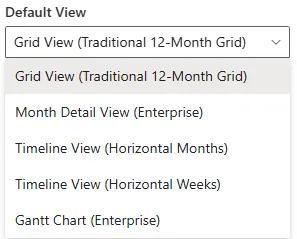
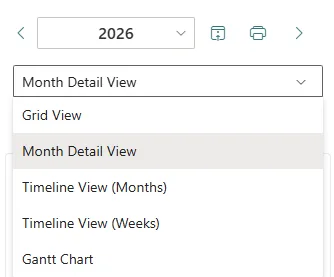
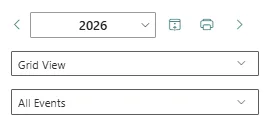
Multiple Calendar Views: Choose the view that suits your team: Year, Month, Week, Grid, or Timeline. Quickly switch between planning modes without leaving the page
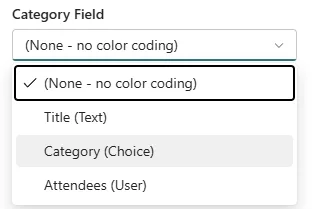
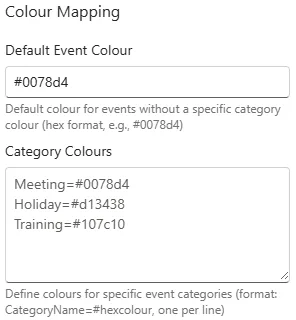
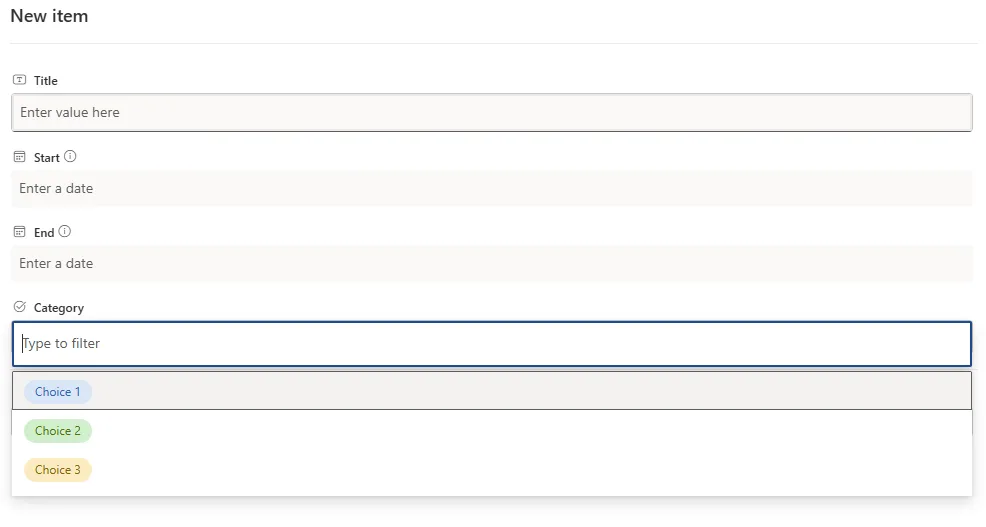
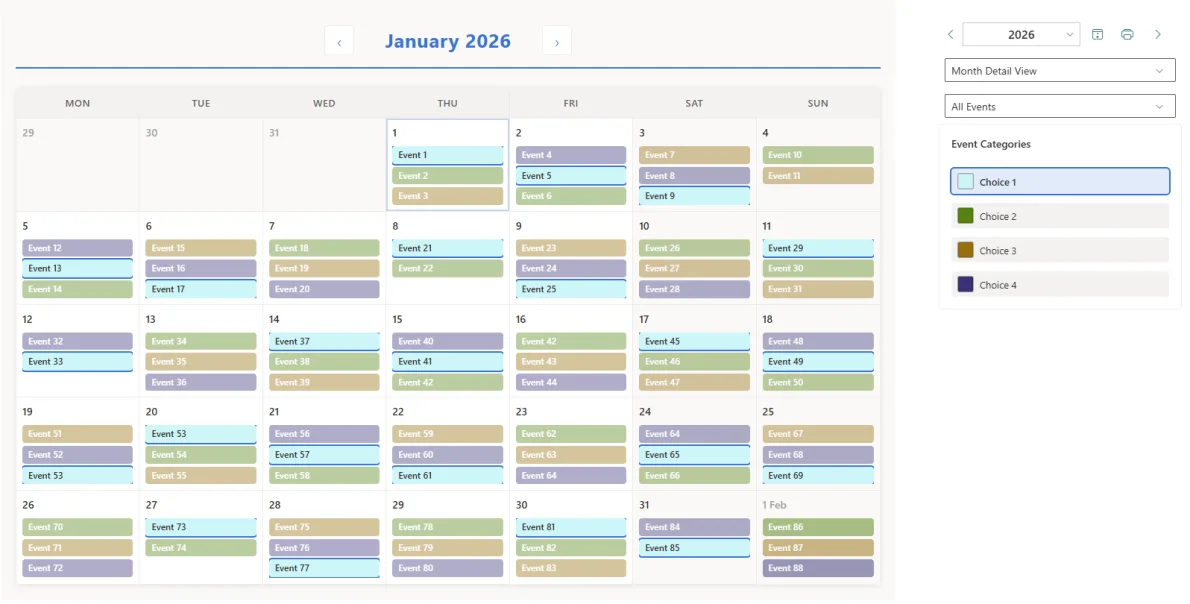
Colour-Coded Categories: Create categories for projects, departments, resource types, or event types — each with its own colour palette for instant visual clarity
SharePoint-Native Storage: All data is stored in your organisation’s SharePoint Online tenant using standard lists — no external data store, no hidden services
Fast Event Management: Click any day to add an event. Edit or delete events via a modern side-panel experience. Everything is just one click away
Powered by M365 Security: Calendar Planner respects your SharePoint permissions and governance controls automatically. No configuration required
How It Works
1. Install the SPFx package: Deploy via your SharePoint App Catalog
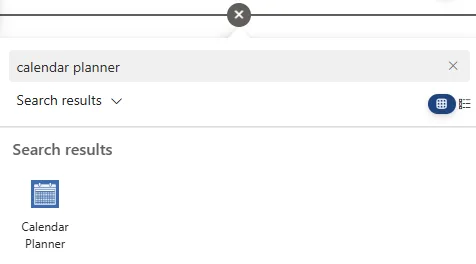
2. Add the web part to a modern page: Insert Calendar Planner like any other SharePoint modern web part
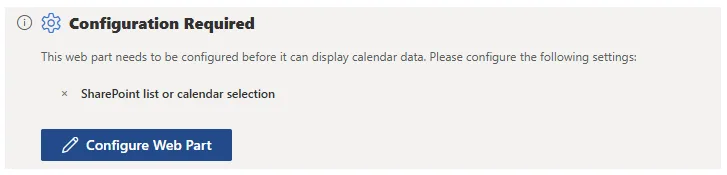
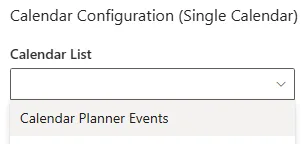
3. Create or connect the event list: The app sets up a SharePoint list automatically
4. Configure categories and defaults: Choose colours and event types
5. Start planning immediately: Everything is ready to use within minutes
FREE
£0.00
Get started with essential calendar visualisation
(Enterprise features are available for 30-days)
STANDARD
£2.28
Everything in Free, plus powerful planning tools
(A 30-day trial, then costs are per user, per month)
ENTERPRISE
£5.31
Everything in Standard, plus these advanced capabilities
(A 30-day trial, then costs are per user, per month)
Insights, Use Cases & Scenarios

Education Scenario
(Free Edition)
A university department needs a clear view of key academic dates and programme milestones, without editing or managing events from the calendar itself.
A simple annual view for academic planning
Calendar Planner Free provides an annual view of teaching periods, governance dates and major activities, shown directly from existing SharePoint lists. The Year Grid offers a reliable picture of the year, embedded in a SharePoint page teams already use.
READ MORE

Project Management
(Standard Edition)
Programme and PMO teams need to coordinate activity across the year and keep shared schedules accurate as plans evolve.
Keeping shared schedules aligned as plans change
With the Standard tier, Calendar Planner presents existing SharePoint planning information through interactive month and timeline views that update automatically. Teams can maintain a single source of planning information while giving stakeholders a view that stays current as changes occur.
READ MORE

Large Organisations
(Enterprise Edition)
Large organisations need visibility across operational, regulatory and governance plans, without consolidating them into a new planning system.
Understanding how plans interact over time
The Enterprise tier allows multiple SharePoint schedules to be visualised together in a single view. This makes overlaps, sequencing issues and pressure points easier to see, while leaving ownership and governance exactly where they are today.
READ MORE
Frequently asked questions
Below are commonly asked questions about this Web Part
When configuring the ‘Calendar Planner’ web part on any page, SharePoint admins can effortlessly enhance the functionality of each Calendar.
Some of the settings will only have an effect if you are subscribed to the corresponding tier feature.
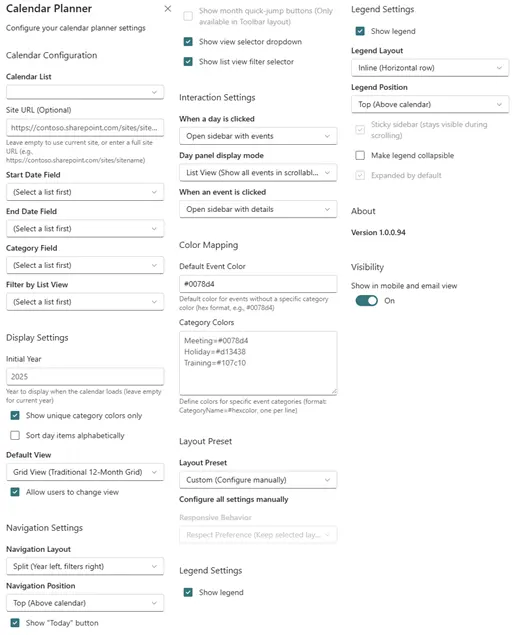
To deploy Web Parts in SharePoint, follow these general steps:
- Upload and install the package in the App Catalog or ‘Manage Apps’ in the Tenant App Catalog
- Edit the target web page, add the deployed Web Part from the web parts gallery, and configure its properties
- Save and publish the page to make the Web Part visible to users
- Ensure you refer to the official documentation for specific instructions based on your SharePoint version and deployment method.”
To ensure a successful deployment of a web part in SharePoint, follow these steps:
- Visit the SharePoint site you wish to use the web part on
- Edit a page where you intend to add the web part
- Locate the web part in the web part gallery
- Add the web part to the page by dragging it into the desired zone or section
- Configure the web part’s properties, including alignment, icon selection, and styling options
- Save and publish the page
- Preview the page or access it as a regular user to verify the visibility and proper functioning of the web part
If the web part appears as expected and functions correctly on the page, it indicates a successful deployment. However, if any issues arise or the web part doesn’t behave as intended, it’s advisable to review the deployment process and ensure each step is followed accurately.
Additionally, thoroughly test the web part across various scenarios, such as different browsers or user roles, to ensure compatibility and proper functionality.
In case of any issues, please refer to our support documentation.
If you don’t find the answer, please contact us via here.
JFDI can help with the installation and configuration on request.